Use EnKonto in Claude, ChatGPT and Copilot Studio
EnKonto has an MCP server at https://app.enkonto.com/mcp. Add it to an AI app that supports remote MCP servers with OAuth sign-in, such as Claude, ChatGPT or Microsoft Copilot Studio, sign in to EnKonto and choose what the app may do. The app can then read your companies, customers and invoices and prepare drafts for you. If you allow it, it can also issue, e-mail, send to KSeF, cancel or delete documents and change your bank and e-invoice details, each time only after you confirm.
Server address
https://app.enkonto.com/mcp
The server runs in the app at app.enkonto.com, not on the website enkonto.com. You don't need an API key: the AI app signs in through EnKonto.
What you can ask
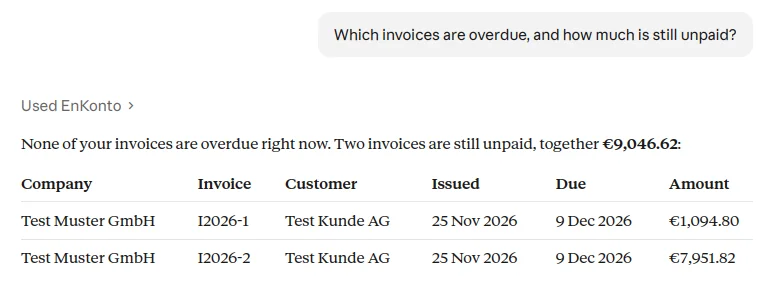
- Which invoices are overdue, and how much is still unpaid?
- What did we invoice in October — net, VAT and gross, per currency?
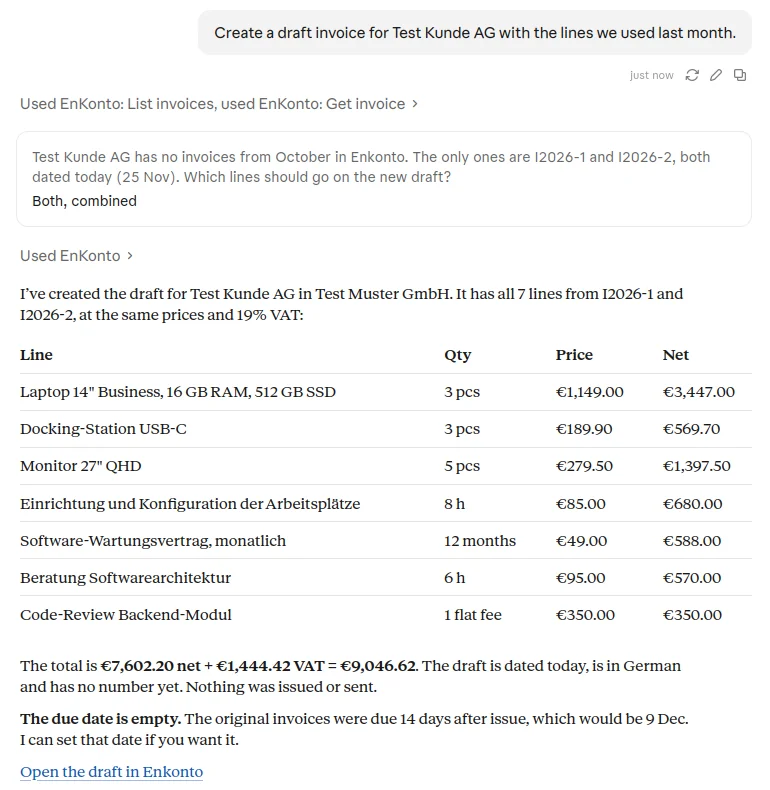
- Create a draft invoice for Acme GmbH with the lines we used last month.
- Is anything missing on this draft for its e-invoice format?
- Issue this draft and e-mail it to the customer.
- Mark invoice 2026-14 as paid on 3 November.
- Has KSeF accepted the invoice we sent yesterday?
 (opens the full-size image)
 (opens the full-size image)
Check what the AI prepared, and read its summary before you confirm that anything is issued or sent.
What the AI app can do today
Read
- Your companies with their tax and contact details, bank accounts, settings and plan usage
- Customers, found by name or tax number
- Invoices and proformas, filtered by status, customer, date, overdue or paid
- A document's parties, lines, totals, payment details, KSeF status and e-mail delivery status
- Totals of issued documents for a period, per currency: paid, unpaid and overdue
- VAT rates of a country and the item lines you used recently
- What a document is missing for the e-invoice format that applies to it
Change (only if you allowed changes)
- Create a company or edit its details
- Add a bank account or change its bank name, BIC or currency
- Create and edit customers
- Create invoice drafts and proformas (a proforma gets its number at once, as in EnKonto), edit them and their lines, change their customer
- Copy a document to a new draft or proforma, or turn a proforma into a draft invoice
- Mark an issued document as paid or sent — nothing is sent to your customer
- Add UPN or EPC payment QR codes to a draft or proforma
- Show or hide fields on the PDF of a draft or proforma, such as tax numbers, the due date or your logo
- Change the colour theme of a draft or proforma, or of the new documents of a company, if the company's plan includes themes
- Update open drafts with changed company or customer details
- Refresh the KSeF status of an invoice already sent to KSeF
After your confirmation (only if you allowed issuing)
The app first asks EnKonto to prepare the action: EnKonto runs the same checks as when you do it yourself in EnKonto and answers with a summary of what will happen, without changing anything. The app shows you the summary, and EnKonto acts only when the app confirms it within 10 minutes. If the document or the details the summary relied on changed in the meantime, nothing is done and the app has to prepare the action again. The app can do only what your role in the company lets you do.
- Issue an invoice draft. The summary shows the number and date it will get, the customer, the totals per VAT rate, the bank account, the e-invoice warnings and your plan usage. An issued invoice is locked and can't go back to a draft; nothing is sent to the customer or to KSeF.
- E-mail an issued invoice or proforma, with a link to the document or with the PDF attached, to at most five different addresses per document. The summary shows the recipients and marks every address that isn't the customer's contact e-mail. Each recipient gets their own e-mail from your company, replies go to you, and an e-mail can't be taken back.
- Send an issued invoice of a Polish company to KSeF, if KSeF is connected in EnKonto. The summary shows the KSeF environment (a test environment isn't legally binding), whether the invoice goes online or in the offline24 mode, and the KSeF warnings. Sending can't be undone.
- Cancel an issued invoice or proforma. An invoice keeps its number, which is never reused; a cancelled proforma keeps it unless you delete it. The document still counts toward the monthly limit of the plan, the customer isn't told, and links and e-mails sent earlier still open it. Cancelling can't be undone. An invoice sent or queued for KSeF can't be cancelled unless KSeF rejected it.
- Delete an invoice draft or a proforma not yet turned into an invoice. The summary shows the document, its customer and total, and what deleting means. Deleting can't be undone: a draft frees its place in the draft limit of the plan; a proforma still counts toward the monthly limit, its links stop working, and its number goes to the next proforma only if it was the highest. Deleting a draft made from a proforma reopens that proforma.
- Choose which saved bank account of the company an invoice draft or an open proforma shows. The summary shows the current account with the IBAN masked, the new one in full, and whether the currency, the exchange rate or the payment QR codes change. An open proforma shows the new account through its links from then on; a PDF sent earlier keeps the old one.
- Change your bank and e-invoice details: the IBAN of a bank account, the default bank account or your company's e-invoice address. The summary shows the old IBANs masked and the new ones in full, the old and new e-invoice address, and how many invoice drafts get the new address. Existing documents keep their bank account; invoice drafts get the new e-invoice address at once. Check every new value against your bank documents or your e-invoice registration before you confirm.
What it can't do (yet)
- Delete customers, companies or bank accounts. Issued invoices can't be deleted in EnKonto either, only cancelled.
- Give you PDF or XML files. It gives you a link to the document in EnKonto, where you download them.
- Connect KSeF, upload or change your logo, or change your company's country. Do these in EnKonto.
How to connect
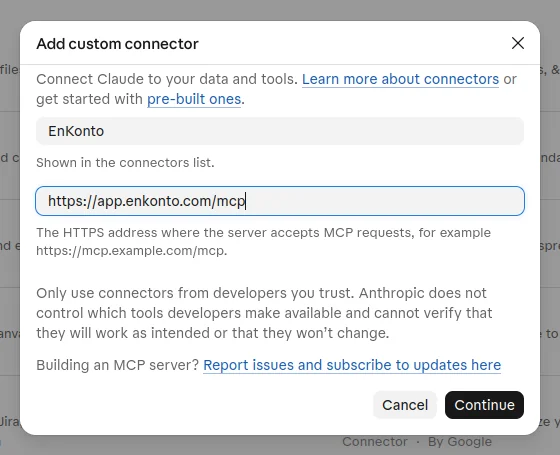
- In your AI app, add a custom connector, app or MCP server — the name differs between apps. Whether you can depends on the app and your plan with it; in a company workspace, an administrator of that workspace may have to add it.
 (opens the full-size image)
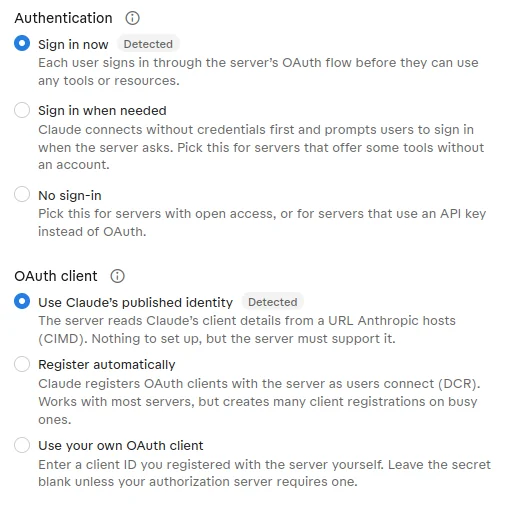
Adding EnKonto as a custom connector in Claude. - Enter the server address https://app.enkonto.com/mcp. If the app asks how to sign in, choose OAuth. You don't need a client ID, client secret or API key: the app registers itself with EnKonto. If your app only lets you enter a client ID and secret, contact us through Support in the EnKonto app.
 (opens the full-size image)
Claude detects the OAuth sign-in by itself, so you don't need a client ID. - The app opens the EnKonto sign-in page. Sign in with your password (and your two-factor code, if you use one) or with Google. No account yet? You can create one from the same page.
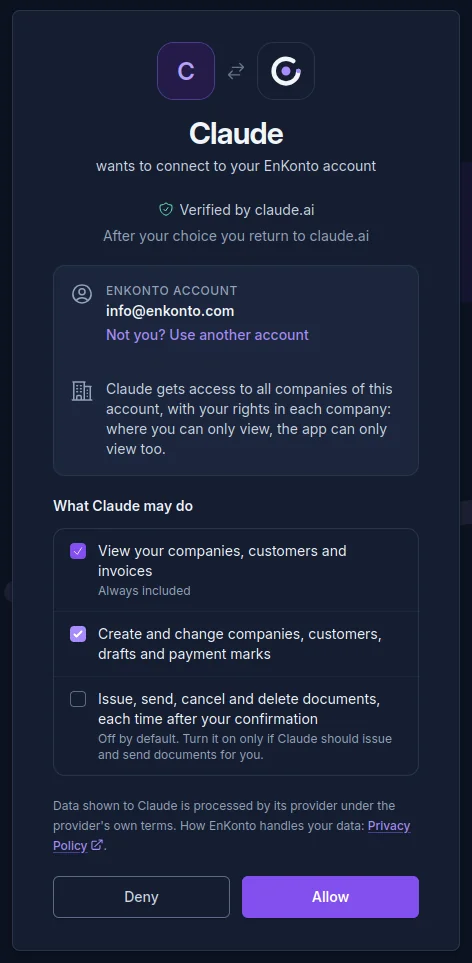
- Check the app's name and the address it returns to, then choose from the permissions the app asks for: reading is always included, changes are on by default and can be switched off, issuing is off unless you tick it. Tick it if the app should issue, e-mail, send to KSeF, cancel or delete documents, choose the bank account a draft or proforma shows, or change your bank and e-invoice details after your confirmation.
 (opens the full-size image)
On EnKonto's own page you choose what Claude may do. - Go back to the AI app and ask. If you have several companies, tell it which one.
Security and privacy
- You sign in on EnKonto's own page; the AI app never sees your password.
- The app works as you: it sees every company in your account, with the rights you have in each. If your role in a company is limited, so is the app.
- Issuing is off unless you tick it, and even then each action needs your confirmation.
- Every change the app makes or attempts in a company is logged for 30 days, including each action it prepares or carries out after your confirmation. You see the last 20 actions of each app in your profile under Security → Connected AI apps; company owners and members who manage the team see all AI actions in their company on its team page. Reading isn't logged, and the log holds no document contents, e-mail addresses or bank account numbers.
- You can disconnect an app there at any time; it loses access immediately. After that its history leaves your profile but stays on the company team page until it expires. Changing your password or signing out everywhere ends the access of every connected app. A connection that isn't used for 30 days ends by itself.
- What the app reads is sent to its provider (for example Anthropic, OpenAI or Microsoft) and processed under that provider's terms and your settings there. Connect only apps you trust.
- EnKonto doesn't give an AI app the tax number of a customer who is a private person. Customer and invoice lists leave out e-mail addresses and phone numbers; a single customer or document includes its contact details.
Questions
What is the address of the EnKonto MCP server?
https://app.enkonto.com/mcp. The server is part of the app at app.enkonto.com; the same path on enkonto.com doesn't work.
Can the AI issue invoices, e-mail them or send them to KSeF?
Yes, if you ticked issuing when you connected the app: it can issue a draft, e-mail an issued invoice or proforma, send an issued invoice of a Polish company to KSeF, cancel an issued document, delete a draft or proforma and change your bank and e-invoice details, each time only after you confirm. Without issuing it prepares drafts and proformas, checks them and records payments, and you issue and send them in EnKonto. To add issuing later, connect the app again and tick it.
How does the confirmation work?
Before any of the actions listed above, the app shows you a summary prepared by EnKonto, and EnKonto acts only after you confirm it. The section on these actions above explains the details.
Which AI apps work with EnKonto?
Apps that can add a remote MCP server with OAuth sign-in, such as Claude, ChatGPT, Microsoft Copilot Studio and developer tools like Claude Code or Cursor. What you can add depends on the app and your plan with it. Tools that connect straight from a web page in your browser aren't supported.
In which language does it answer?
EnKonto answers the AI app in English; the app usually replies in the language you write in. Your documents keep the language set in EnKonto.
How do I see what the AI changed, or stop it?
In your profile under Security → Connected AI apps: the recent actions of each connected app, and Disconnect. Company owners and members who manage the team see all AI actions in a company on its team page, also after an app was disconnected.
Who processes the data the AI app reads?
The provider of the AI app, under its terms and your settings with it. EnKonto hands data only to the apps you connected and allowed.